Showing posts with label #android video player. Show all posts

1.26.2022

[ KMPlayer APP ] KMPlayer supports Home Mode!


Tips for using KMPlayer APP #HomeMode


For users' convenient use of KMPlayer, 

we are the KMPlayer team who are thinking about various UIs, themes, and modes!


The function I'm going to introduce today is [Home Mode].

KMPlayer supports a total of two home modes!

PAGE MODE helps you access various functions easily.

TAB MODE helps manage many lists easily.


Let me introduce these two modes.


< How to change Home Mode >

After clicking the 'Home Screen Setting' icon at the top of the home screen, it can be changed in MODE.


PAGE MODE >

In PAGE MODE, functions and storage are listed as respective icons, 

so you can move to the corresponding function and storage page with a single touch. 


TAB MODE >

In TAB MODE, it is useful for list management as KMPlayer default mode.

Internal/external storage is divided by folder, and cloud or favorites are listed as a list.


In this posting, we introduced KMPlayer [Home Mode].

Please use [Home Mode] a lot from now on!


Enjoy videos with KMPlayer APP!

Thank you.


▼ KMPlayer Homepage ▼

https://www.kmplayer.com


▼ KMPlayer Android & iOS application ▼

https://fb.kmplex.com/dlink/share


6.29.2021

[ KMPlayer VIP ] Crop Video & Crop Audio

Added KMPlayer Edit menu!

In the KMPlayer Edit menu, you can quickly and easily use VIP functions such as media cropping, GIF creation, and MP3 extraction.

Also, because GIF files and MP3 files created using each VIP function are gathered, it can be played quickly. 


This useful KMPlayer Edit menu can be moved by clicking “KMP Edit” in [ Home tab > Toolbox ]!


In this post, we will use “Media Crop”, a VIP function added with the KMPlayer Edit menu.

Media Cropping supports a total of two functions.

  1. Crop Video : The ability to crop the desired part of the video.
  2. Crop Audio : The ability to cut the desired part of the audio.


Crop Video

STEP 1) Click [Crop Video] and select the video.

STEP 2) Specify the start and end of the video you want to crop.

STEP 3) Click the confirm button.

Click the Save button on the preview screen and you're done!


Crop Audio

STEP 1) Click [Crop Audio] and select the audio.

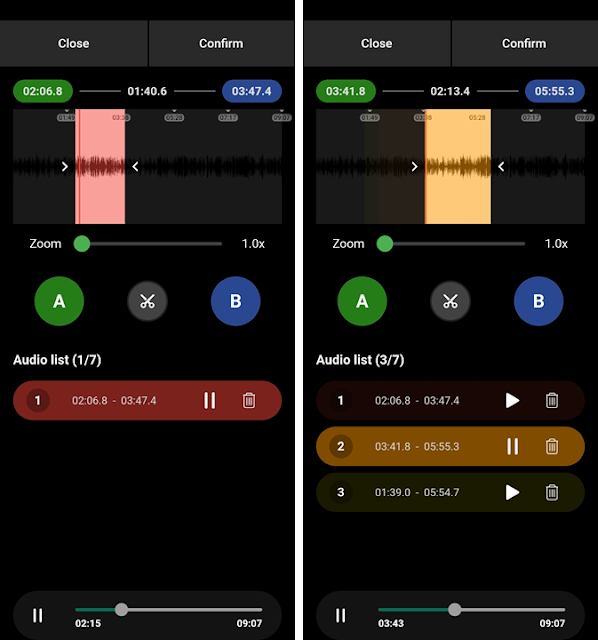
STEP 2) Specify the start and end of the audio you want to cut and click the Scissors button.

Crop Audio function can cut from one audio file to multiple files.

STEP 3) Click the confirm button.

Click the Save button on the preview screen and you're done!


Thank you.


4.22.2021

[ KMPlayer APP ] Use the media lock function!

 Tips for using KMPlayer APP #MediaLock


KMPlayer APP supports media lock function.

If you use the media lock function for a video or music file in KMPlayer APP,

you can play the video or music only in the lock tab.


In this post, we will use the media lock feature.


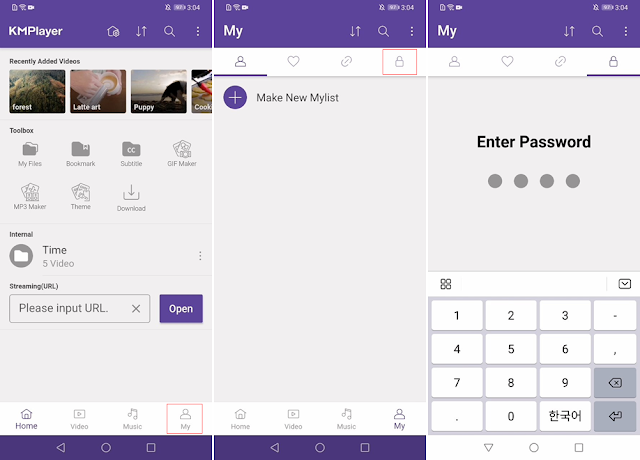
First, set a password in the lock tab

STEP 1) Go to the [My Tab > My Tab's Key Tab (Lock Tab)] screen.


STEP 2) If no password has been set, set a password.

(caution! If you forget your password, you will need to reset the app. )


Second, using the media lock function

STEP 1) Click the More button of the media you want to lock.

STEP 2) Press the Media Lock menu.

Media using the media lock function is not visible in the list.


Third, check the media in the lock tab

STEP 1) Go to the [My Tab > My Tab's Key Tab (Lock Tab)] screen.

STEP 2) Enter your password.


Fourth, unlocking

STEP 1) In the Lock tab, click the Media's More button.

STEP 2) Click the Unlock menu.


Thank you.


▼ KMPlayer Homepage ▼

https://www.kmplayer.com


▼ KMPlayer Android & iOS application ▼

https://fb.kmplex.com/dlink/share


4.05.2021

[ KMPlayer APP ] Create your own KMPlayer with Home screen setting.

Tips for using KMPlayer APP #HomeScreenSetting


I don't want to see features I don't need!

I want to arrange the screens in the order I use them often!


The KMPlayer APP can freely change the composition of the home screen.


In this post, We will change the composition of the home screen.


STEP 1) Click the 'Home Screen Setting' icon at the top of the home screen.

When clicked, it moves to the 'Home Screen Setting' screen.


STEP 2) In the Home Screen Setting, specify the order and ON/OFF for each group.


STEP 3) Setup complete!


Enjoy videos with KMPlayer APP!


Thank you.


▼ KMPlayer Homepage ▼

https://www.kmplayer.com


▼ KMPlayer Android & iOS application ▼

https://fb.kmplex.com/dlink/share


3.18.2021

[ KMPlayer APP ] Create an easy-to-use video player with quick button settings.

Hello.


First ) The quick button doesn't have the function I want!

Second ) I want to use all the functions of the video player as a quick button!

Third ) I want to use a neat video player without a quick button!


Have you ever thought about the above while using a video player?

Try using the Quick Button setting in the KMPlayer APP!


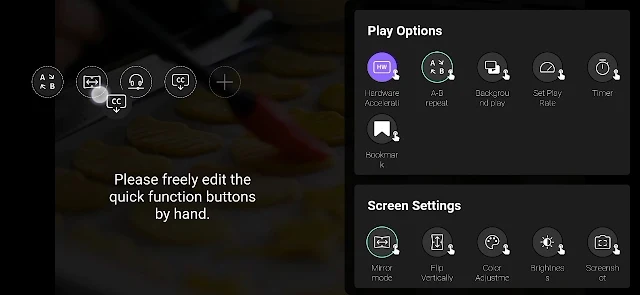
KMPlayer APP can use all the menus of the video player as quick buttons.

In this post, we will use the quick button setting.


STEP 1) Run the video. Then, click the pencil button next to the quick button on the video player screen. 

STEP 2) On the Quick Button Setup screen, click the menu that you want to set as the Quick Button.

STEP 3) Change the order of the selected quick buttons.

STEP 4) Now try using the quick button! 

Enjoy videos with KMPlayer APP!


Thank you.

----

▼ KMPlayer Homepage ▼

https://www.kmplayer.com


▼ KMPlayer Android & iOS application ▼

https://fb.kmplex.com/dlink/share


▼ Facebook ▼

https://www.facebook.com/kmpmedia/


▼ Instagram ▼

https://www.instagram.com/kmplayer_official/