Showing posts with label #music player. Show all posts

6.30.2021

[ KMPlayer 64X ] Let's play neatly without a control box!


Hello.


Do you like watching game-related content while playing games?

Do you like watching movies while doing other things on your computer?

Do you like taking notes on your computer while listening to video lectures?

If so, here's a tip for KMPlayer 64X!


The tip I'm going to introduce this time is [ Default Control Autohide mode ]!

If you use this mode, the top and bottom control boxes are hidden.


STEP 1 ) Click [ Right mouse button > View > Default Control Autohide mode ].


STEP 2 ) Confirm that [ Default Control Autohide mode ] is applied.

Please use the [ Default Control Autohide mode ] function of KMPlayer 64X a lot.


Thank you.


6.29.2021

[ KMPlayer VIP ] Crop Video & Crop Audio

Added KMPlayer Edit menu!

In the KMPlayer Edit menu, you can quickly and easily use VIP functions such as media cropping, GIF creation, and MP3 extraction.

Also, because GIF files and MP3 files created using each VIP function are gathered, it can be played quickly. 


This useful KMPlayer Edit menu can be moved by clicking “KMP Edit” in [ Home tab > Toolbox ]!


In this post, we will use “Media Crop”, a VIP function added with the KMPlayer Edit menu.

Media Cropping supports a total of two functions.

  1. Crop Video : The ability to crop the desired part of the video.
  2. Crop Audio : The ability to cut the desired part of the audio.


Crop Video

STEP 1) Click [Crop Video] and select the video.

STEP 2) Specify the start and end of the video you want to crop.

STEP 3) Click the confirm button.

Click the Save button on the preview screen and you're done!


Crop Audio

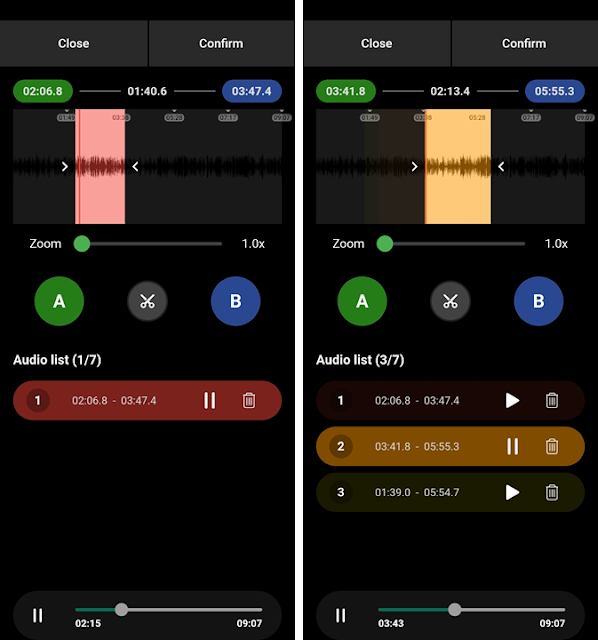
STEP 1) Click [Crop Audio] and select the audio.

STEP 2) Specify the start and end of the audio you want to cut and click the Scissors button.

Crop Audio function can cut from one audio file to multiple files.

STEP 3) Click the confirm button.

Click the Save button on the preview screen and you're done!


Thank you.


4.05.2021

[ KMPlayer APP ] Create your own KMPlayer with Home screen setting.

Tips for using KMPlayer APP #HomeScreenSetting


I don't want to see features I don't need!

I want to arrange the screens in the order I use them often!


The KMPlayer APP can freely change the composition of the home screen.


In this post, We will change the composition of the home screen.


STEP 1) Click the 'Home Screen Setting' icon at the top of the home screen.

When clicked, it moves to the 'Home Screen Setting' screen.


STEP 2) In the Home Screen Setting, specify the order and ON/OFF for each group.


STEP 3) Setup complete!


Enjoy videos with KMPlayer APP!


Thank you.


▼ KMPlayer Homepage ▼

https://www.kmplayer.com


▼ KMPlayer Android & iOS application ▼

https://fb.kmplex.com/dlink/share


3.26.2021

[ KMPlayer APP ] Create multiple playlists with My List

 Tips for using KMPlayer APP #MyList

There are videos and music that match your situation, such as parties, drives, and reading.

For example, just like there are music that each person listens to on a rainy day!


With KMPlayer APP, you don't have to find the same music and videos every time depending on the situation!

You can make your own playlist “MyList” in advance!


In this post, We will create MyList!


First way to add!


STEP 1) Go to the MyList tab.

How to move MyList : : My Tab > First Tab


STEP 2) Click the + button (Make New Mylist).

Then enter a name for MyList and click ‘OK’. 


STEP 3) Click the More button on the specific media in the media list.

Click on "Add Mylist". Then select the Mylist to which you want to add the media.


Mylist is added!


Second way to add!


STEP 1) Click the More button on the specific media in the media list.

Click on "Add Mylist". 


STEP 2) Click the + button (Make New Mylist).

Then enter a name for MyList and click ‘OK’. 


Mylist is added!


Play on MyList!


STEP 1) Go to the MyList tab.

After selecting MyList to play, first select the video to play.


Thank you.

-----------

▼ KMPlayer Homepage ▼

https://www.kmplayer.com


▼ KMPlayer Android & iOS application ▼

https://fb.kmplex.com/dlink/share


▼ Facebook ▼

https://www.facebook.com/kmpmedia/


▼ Instagram ▼

https://www.instagram.com/kmplayer_official/