5.04.2016

How to bookmark your favorite scenes of the video on KMPlayer ?

Hello KMP users ! 

Today I wanna introduce you another useful feature on KMPlayer !

IT IS...BOOKMARK! 

I guess you all have your <movie of life> at least one! 
And you also have your particularly favorite scene for that movie!

This bookmark enables to remember the scenes you mark while playing the video and to go back those scenes whenever you want. 


I'll show you how to bookmark the scenes right now :)

Open a file first 
  
Right click -  [Bookmarks/Chapter] - [Add to bookmarks]


 As soon as you add your bookmark, you see the list of your bookmarks 

 You can add any scene as a bookmark 

 As your bookmark is added, your history of bookmark appears as you see the screenshot.  

Also, you see the small white dots on your playback bar.
These dots mark your bookmarked scenes! 


 Once you set your bookmarks, your bookmark history remains. 
Thus you can open your bookmark scenes while you are playing other file.
Right click -  [Bookmarks/Chapter] - find your video file name which you already bookmarked 
Once you click one of your history,
the bookmarked scene (even a different file from the file you are playing) is automatically read and opened. 

 Since your bookmark history remains even when you turn off your KMPlayer, 
you can edit these on setting option
Right Click - [Bookmarks/Chapter] - [Edit Bookmarks] 

 You can add or delete here   or...


You can even edit the title of bookmark.
Editing the title of bookmark makes you much easier to find the scenes you want. 


 VOILA! 
See the bookmark title is changed as I edited! 


-----------------------------------------------------


Hope you like bookmark setting and enjoy this feature! 

▼ KMPlayer Homepage ▼

https://www.kmplayer.com


▼ KMPlayer Android & iOS application ▼

https://fb.kmplex.com/dlink/share


4.29.2016

KMPlayer is not only a video player but an audio player as well!

Good afternoon ! KMP users !

I think you are familiar with KMPlayer as a video player!
HOWEVER, KMPlayer can also be used as an amazing audio player! 

Today, I'd like to talk about KMP audio player and its features! 

Open your KMPlayer and a file!  

Find a folder you want to play and select the files ! Open them after!   

 As soon as you open your files, you see KMPlayer is transformed into an audio player!  


If you want to see your playlist, click the list icon at the bottom left
Your playlist will be shown immediately 

Let's see some other settings! 

There's an equalizer icon on the left! You can turn on/off your equalizer here 

 The next icon of the equalizer is repeating album ! 
When you want to listen playing file over and over, turn on your repeat setting! 

 The next icon is shuffle playing icon! 

 And the last icon is A-B phase repeat setting ! 
If you want to set a certain phase repeating, you can click the play icon first. 
Click A icon to set a start point and then B icon to end the point. 


Also I'd like to introduce "visualization" option! 

 Right click- [Visualization] - [Visualization On/Off] 
Your visualization feature is turned on and you see a screen is popped. 

You can select what is shown on the screen. 
When your visualization is on, you see five different options.
1. Windows visualization - this will show you the frequency of your audio file.
This setting can/can't be shown depending on your file. 
2. Display Simple Screen - some random figures will be popped (not recommended unless you like some dizzy stuff) 
3. No Screen - black screen
4. Slideshow - Slideshow of your pictures (I'll come back to this) 
5. Audio Album Thumbnail - bigger album thumbnail as you see the screenshot above.  

Okay, let's come back to the 4. Slideshow! 
This feature functions as a digital album. 
The pictures from a selected picture folder will be shown as a slideshow! 
Default value is My PC-My picture  but you can change the location.

 Right click - [Options] - [Preferences]  


Visualiztion - Slideshow tab! 
You can add one or more folders to make a slideshow.
I changed my folder to show Bradley Cooper on my screen because I'm a big fan of Mr.Cooper :)
Also you can change your slide effect settings! 
When you're done, please wait a bit.   

Few seconds after, you'll see your selected pictures appear on your screen! 

 Actually this visualization feature was recently updated! 
If you already updated your KMPlayer as 4.0.7.1 version, you can enjoy this new feature! 


Hope you like today's posting! :)
Have a great weekend! 

▼ KMPlayer Homepage ▼

https://www.kmplayer.com


▼ KMPlayer Android & iOS application ▼

https://fb.kmplex.com/dlink/share

4.26.2016

How to change skins on KMPlayer

Hello KMP users! 

Today I'd like to share how to change KMPlayer skins! 

First is to change a color of skins! 


 You see KMPlayer has chic black skins for its original version as above! 

However you can change your skins color whichever you like! 


 Right click - [Skins]-[Color Themes] 

Then you see several options for selecting your color!  
Default value is originally set as [Do not use],
 but! you can change if you want :) 


For me, I choose..... Rose Pink! I click Rose pink! 

 Yeah my skins are immediately changed!

Seems Hulk goes well with Rose Pink ooohh :P 

Simply done! 


Next is to change skins option for those using touch PC! 
I think this option seems very helpful for touch PCusers!

I know it's very annoying when an icon is too small to touch with my chubby finger! 
SO! Here is the solution from KMPlayer! 


Right click - [Skins]- [touch.ksf] 

When you change your setting to touch mode,


 You see the skins become optimized for touch PC users! 

Playback icons and other icons become bigger than original skins!
Thank you KMPlayer!!!!!!!! 


You can also change your skins color on this touch mode! 
This time, I choose....RED! the icon of passionnnnn!! 


 Yes!  mine looks special with this red skins! :oooo


If you don't want colorful skins, go back to settings :
[Skins]-[Color themes]-[Do not use]  click! 


If you don't want touch mode either, 
[Skins]-[Built-in Skin] click! 
Then it goes back to the original skins!

Back to the original one! 

It is quite surprising that KMPlayer concerns every user type and has this convenient function :) 

Useful! Helpful! KMPlayer you're the best :)


▼ KMPlayer Homepage ▼

https://www.kmplayer.com


▼ KMPlayer Android & iOS application ▼

https://fb.kmplex.com/dlink/share

4.22.2016

How to edit(crop/merge) a video file on KMPlayer!

Hello KMP Users! 

I'm back with a new content today ! 

Thesedays we're very familiar with shortly clipped video on Facebook, Youtube or other SNS platforms! 


So! I'd like to share a simple way to edit my video using KMPlayer !
Especially how to clip, crop and merge the file ! 

Let's begin with making the clipped video!
Open your video file and right click! 


[Capture]-[Video Capture] 

You will see three tabs on the setting  box : Capture / File crop / Merge files

Let's look over "Capture first" .
This function enables you to clip the video on your playing video.  

Basically you can leave the default value for video and audio encoders as they are. 
However, you can also change the option for encoder as well. 


Click START to start your clipping and STOP to end your clipping. 
You can see the values on your Output box if it does work well. 

 When you stop, you'll see your file is proceeding for the encoding. 

 When the encoding is done, the file will be automatically saved as marked drive.
It is originally set as [Drive C - KMPlayer - Capture] folder, 
but you can change your drive.

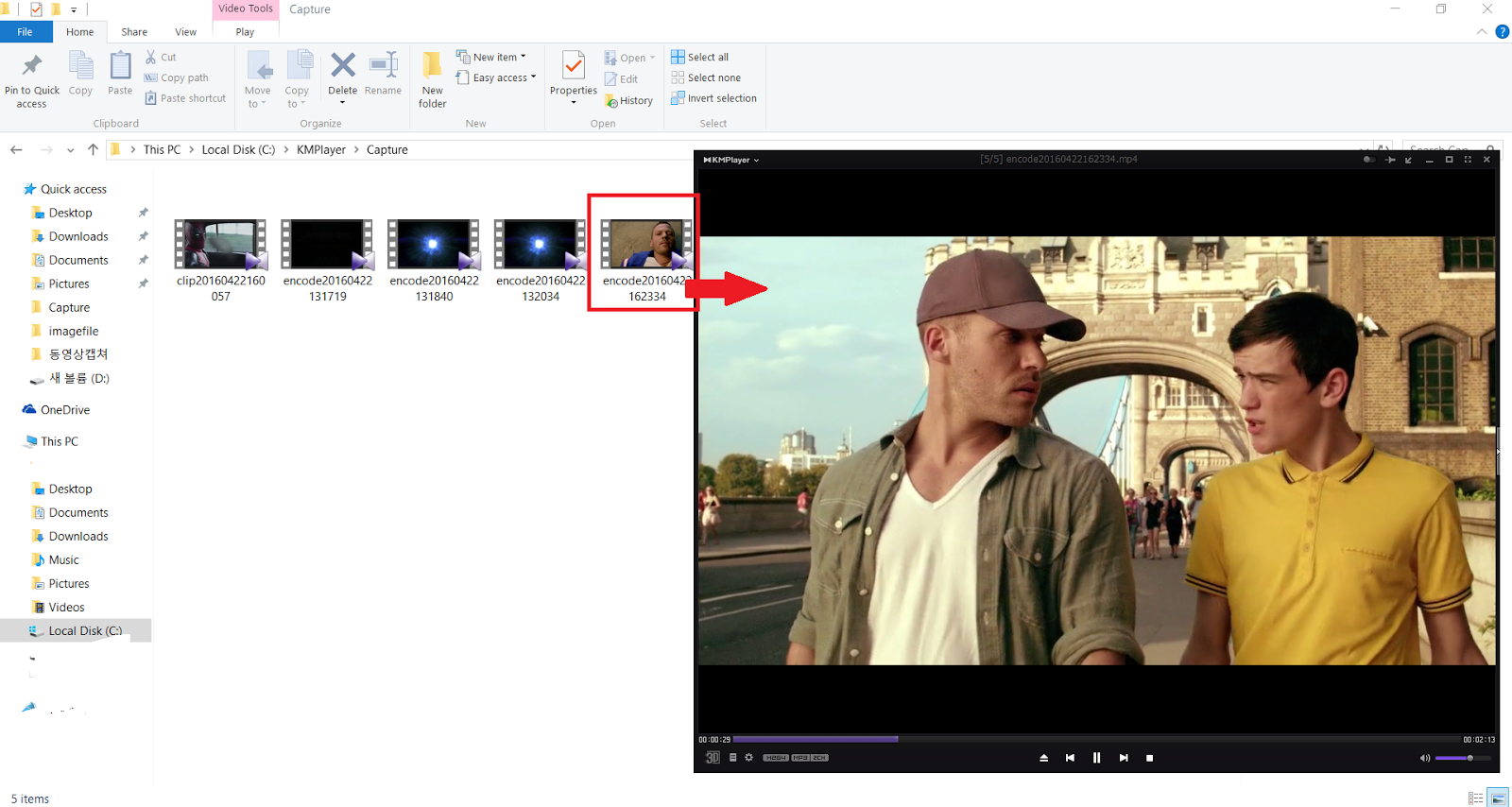
Alright, then let me check whether my file is saved. 


As I set, my video is saved in my [Drive C - KMPlayer - Capture] folder.

Clipping is done! :) 

Then move to second tab :  File Crop

This function enables you to crop the file from the video
 by setting your start time and end time on your own. 


 You can set the start/end time by either clicking the [start time/end time] button ( you can use this function while your video is playing) or entering certain time directly.  

 You also have options for selecting a file format 

 When your file is done with setting the cropping phase, click START button! 
KMPlayer is automatically encoding your file. 


Okay I checked my cropped file is saved in my folder ! 
Cropping is done ! :) 

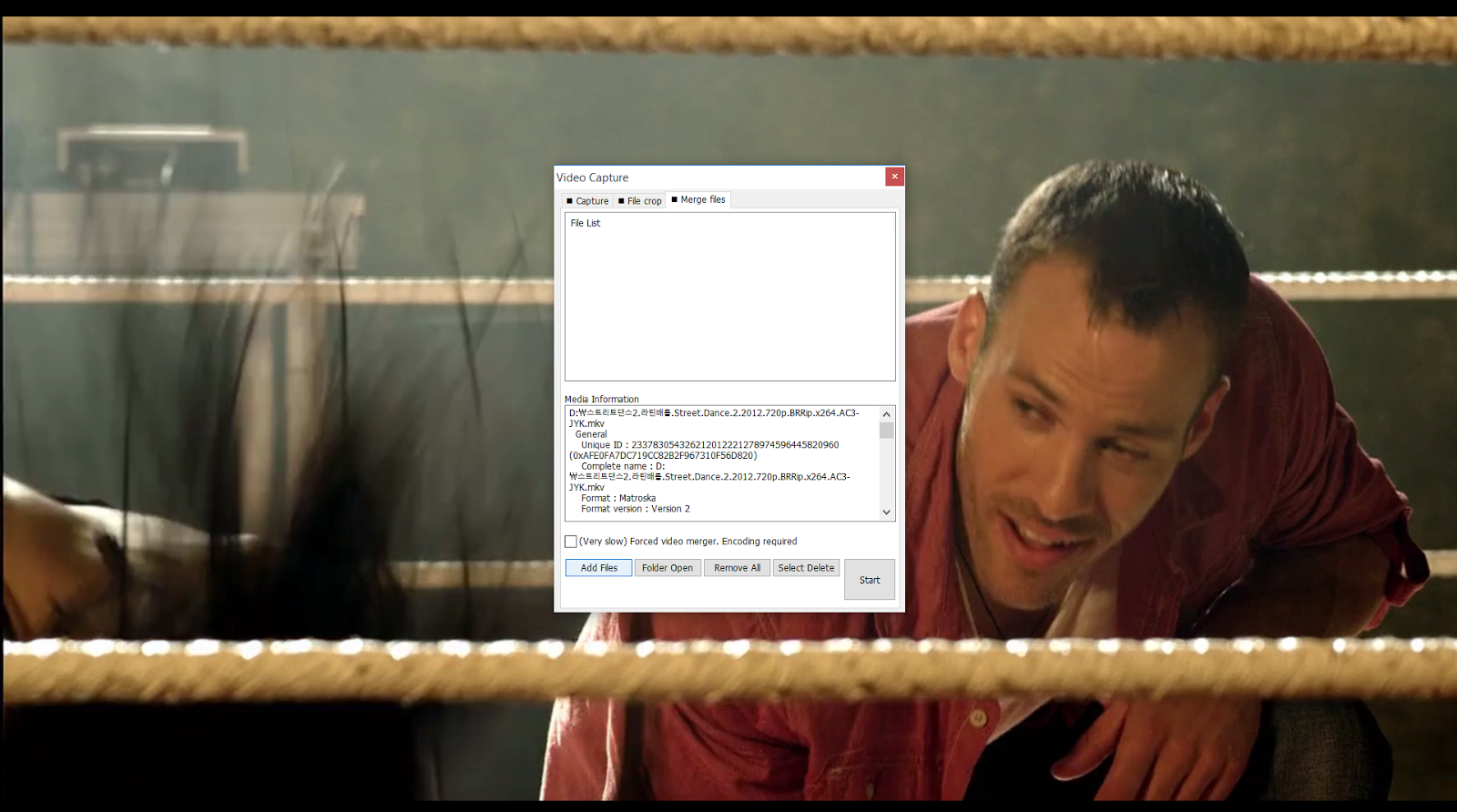
Last function : Merge files

This function enables you to merge your files! 

 Click [Add files] to add your list !
Select several files you want to merge. 


* I recommend you to add same format files! 
For example, if you want to merge two files, both files in mp4 would work well. 

If the two files have different formats such as one is mp4, the other is avi, 
I cannot guarantee the quality of video or the possibility of player error. 

When your files are listed up, click [Start] to start merging your files.

When the merging is done, you'll see Complete! in media information box! 
And you can see your file is, again, automatically saved in your drive! 


It's very simple to edit your video on KMPlayer! 

You can make your own highlighted videos by using this tips because you just became a video maker ! :) 

▼ KMPlayer Homepage ▼

https://www.kmplayer.com


▼ KMPlayer Android & iOS application ▼

https://fb.kmplex.com/dlink/share


4.21.2016

KMPlayer 4.0.7.1 Patch Update [2016/04/21]


Hello KMP Users ! 


We released our update version, KMPlayer 4.0.7.1 !
Please update your KMPlayer to the latest version!

[4.0.7.1 Update feature] 


+ Fixed “Album default thumbnail” and added visualization feature while playing audio file
- Fixed subtitle (idx/sub) error
- Fixed freezing screen error while closing “video capture” 
- Fixed “open folder” error and updated more features
- Fixed FLAC sound file error
- Updated Album visualization size
- Changed to show main platform on Windows Taskbar
- Removed “Default.kpl” file while closing
- Changed default value “Do not read tag data for title while starting playback”
- Changed default value “Display filename instead of custom ‘Title Format’” 

Thank you for using KMPlayer!


▼ KMPlayer Homepage ▼

https://www.kmplayer.com


▼ KMPlayer Android & iOS application ▼

https://fb.kmplex.com/dlink/share